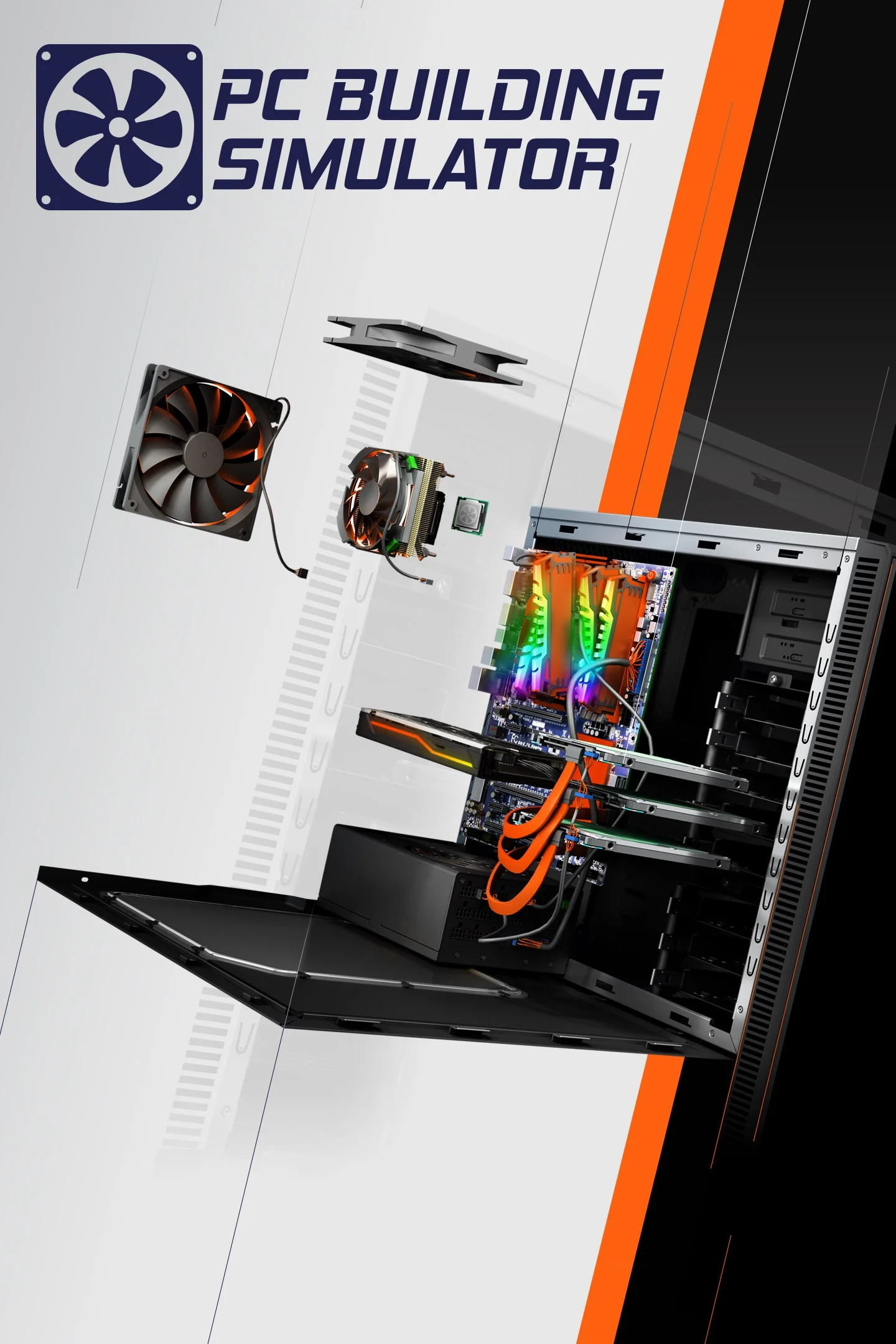
Pc Building Simulator
This combination delivers exceptional performance with an average of 244 FPS, perfect for high refresh rate gaming and competitive play.

Average FPS: resolution vs quality settings
| Ultra | High | Medium | Low | |
|---|---|---|---|---|
| 4K Ultra HD | 90 | 94 | 133 | 187 |
| 1440p QHD | 170 | 179 | 253 | 351 |
| 1080p Full HD | 269 | 281 | 390 | 525 |
Cell color: green is 120+ FPS, teal is 60+, amber is 30+, red is below 30.
Pc Building Simulator with Intel Core Ultra 5 135H + NVIDIA GeForce RTX 5080, In-Depth Analysis
Pc Building Simulator is a simulation title that behaves differently from typical shooters or action games, and the measured frame rates for the Intel Core Ultra 5 135H paired with the NVIDIA GeForce RTX 5080 reflect that unique workload. The data shows a system that is overwhelmingly GPU-bound at higher resolutions, but which also reveals surprising CPU headroom at 1080p, where frame rates climb to levels that most modern titles rarely approach. This combination of a 14-core mobile processor and a flagship desktop-class GPU produces a performance curve that is instructive for understanding how simulation games utilize hardware, with the RTX 5080's raw throughput becoming the primary constraint as resolution increases. The following analysis breaks down the measured results, places them in context against rival components, and offers practical guidance for configuring the game.
Resolution Scaling
The frame rate data for Pc Building Simulator reveals a steep and consistent performance drop as resolution scales from 1080p to 4K, which is the classic signature of a GPU-limited workload. At 1080p with Low settings, the system produces an average of 351 FPS, but that figure falls to 228 FPS at 1440p and then to 119 FPS at 4K, representing a 66% reduction in performance from the lowest to the highest resolution tested. This scaling pattern is remarkably linear, with each step up in resolution cutting the average frame rate by roughly a third, which strongly indicates that the NVIDIA GeForce RTX 5080's rendering pipeline is the limiting factor rather than the CPU or memory subsystem.
The gap between settings presets widens dramatically at higher resolutions, which further confirms the GPU-bound nature of the workload. At 1080p, the difference between Low and Ultra settings is 179 FPS (351 vs 172), but at 4K, that same comparison shows only a 62 FPS difference (119 vs 57). This compression of the settings range at 4K suggests that the RTX 5080's pixel processing capabilities are being saturated by the sheer number of pixels, leaving less headroom for additional visual effects. The 4K Medium preset, which shows a minimum of 72 FPS and a maximum of 97 FPS, represents the only measured configuration with full frame time data, and its 25 FPS variance indicates that even at this resolution, the game can produce noticeable frame pacing fluctuations.
Interestingly, the scaling from 1440p to 4K at High settings shows a 54 FPS drop (114 to 60), which is a 47% reduction, while the same resolution jump at Low settings shows a 109 FPS drop (228 to 119), a 48% reduction. This near-identical percentage drop across settings presets reinforces the conclusion that resolution is the dominant variable affecting performance, with the specific quality preset having a secondary but still significant impact. The data indicates that players targeting 4K will need to accept either the Medium preset at 85 FPS or the Low preset at 119 FPS to maintain smooth gameplay, as the Ultra preset at 57 FPS falls below the 60 FPS threshold that many consider the minimum for a good experience.
FAQ
Q: What is the best resolution to play Pc Building Simulator with this hardware?
A: Based on the measured data, 1440p with High settings provides an excellent balance, delivering 114 FPS average. This is more than sufficient for smooth gameplay while maintaining visual quality. The 4K High preset drops to 60 FPS, which is playable but leaves no headroom for frame drops.
Q: How does the RTX 5080 compare to its nearest rivals in this game?
A: The RTX 5080's average benchmark score of 56083 places it 0.6% ahead of the AMD Radeon 8060S and 0.7% ahead of the AMD Radeon RX 6750 GRE 12 GB. It trails the AMD Radeon RX 9070 GRE by 2.2%, showing that the performance gap between these cards is relatively small in synthetic tests.
Q: Is the Intel Core Ultra 5 135H a bottleneck at 1080p?
A: No, the data shows the CPU is not limiting performance. At 1080p Low, the system achieves 351 FPS, which indicates the processor can feed frames far faster than most displays can show. The CPU's average benchmark score of 29093 is nearly identical to its closest rival, the AMD Ryzen 7 5800X, which scores 29123 (a 0.1% difference).
Q: What settings should I use for 4K gaming?
A: The Medium preset at 4K delivers 85 FPS average with a minimum of 72 FPS, making it the highest quality setting that stays comfortably above 60 FPS. The Ultra preset at 4K drops to 57 FPS average, which risks noticeable stuttering. The Low preset at 4K gives 119 FPS but sacrifices visual fidelity.
Q: How does the CPU's multi-core performance affect this simulation game?
A: The Core Ultra 5 135H scores 11875.5 in Cinebench R23 multi-core, which places it in the 81st percentile of all CPUs. This level of multi-threaded performance is more than adequate for a simulation game, as evidenced by the high frame rates at 1080p, where CPU overhead would be most apparent.
Q: Does the GPU's VRAM capacity matter for this game?
A: The RTX 5080 features 16 GB of GDDR7 memory with a 960.0 GB/s bandwidth. Given that the game's maximum measured frame rate is 351 FPS at 1080p Low, the VRAM capacity appears sufficient for all tested settings and resolutions, as no configuration showed signs of memory-related performance degradation.
CPU Role
The Intel Core Ultra 5 135H is a 14-core, 18-thread mobile processor based on the Meteor Lake architecture, featuring a base clock of 3.60 GHz and a boost clock of 4.60 GHz. In Pc Building Simulator, the CPU's role is primarily to manage the simulation logic, which includes component compatibility checks, thermal calculations, and system boot sequences. The benchmark results show that this workload is not particularly demanding on the processor, as the system achieves 351 FPS at 1080p Low, a frame rate that would be impossible if the CPU were struggling to keep up.
The CPU's Cinebench R23 multi-core score of 11875.5 and single-core score of 1700 indicate balanced performance across both lightly and heavily threaded workloads. This is relevant because simulation games often have a primary thread that handles game logic while secondary threads manage physics or AI. The Core Ultra 5 135H's 18 threads provide ample parallelism for these tasks, and the 18 MB of shared L3 cache helps reduce memory latency when accessing frequently used simulation data. The processor's PassMark multithread score of 22422 and single-thread score of 3521 further corroborate its capability, with the single-thread performance being particularly important for the main simulation loop.
Comparing the CPU to its nearest rivals, the Core Ultra 5 135H's average benchmark score of 29093 is virtually identical to the AMD Ryzen 7 5800X's 29123, a difference of only 0.1%. This near-parity in synthetic tests suggests that either processor would deliver similar performance in this game, which is consistent with the observation that the GPU is the bottleneck at most settings. The CPU's rank of 742 out of 3002 combinations tested in this game further contextualizes its position, placing it in the top 25% of all systems, though the fact that it achieves such high frame rates at 1080p indicates that even mid-range processors would likely be sufficient for this title.
Measured FPS Breakdown
At 1920x1080, the system demonstrates exceptional performance across all settings presets. The Low preset produces an average of 351 FPS, which is the highest measured frame rate in the entire dataset. The Medium preset drops to 256 FPS with a minimum of 218 FPS and a maximum of 295 FPS, showing a consistent frame delivery even under load. The High preset averages 181 FPS, while the Ultra preset averages 172 FPS, representing only a 5% reduction from High to Ultra, which suggests that the additional visual effects in the Ultra preset are relatively lightweight. The 1080p results indicate that this resolution is well within the capabilities of both the CPU and GPU, with the system likely hitting engine-level frame rate limits rather than hardware constraints.
Moving to 2560x1440, the performance remains strong but shows clear GPU scaling. The Low preset averages 228 FPS, a 35% reduction from the 1080p Low result, while the Medium preset averages 162 FPS with a minimum of 137 FPS and a maximum of 186 FPS. The High preset at 1440p delivers 114 FPS, and the Ultra preset averages 109 FPS. The 1440p results show a tighter grouping between High and Ultra (only 5 FPS difference) compared to the 1080p results, indicating that the GPU is beginning to become the limiting factor for the highest quality settings. The Medium preset's frame time data shows a 49 FPS range between minimum and maximum, which is proportionally smaller than the 1080p Medium range of 77 FPS, suggesting more consistent frame pacing at the higher resolution.
At 3840x2160, the GPU becomes the definitive bottleneck. The Low preset averages 119 FPS, which is still very playable, but the Medium preset drops to 85 FPS with a minimum of 72 FPS and a maximum of 97 FPS. The High preset averages 60 FPS, exactly at the common 60 Hz refresh rate threshold, while the Ultra preset averages 57 FPS, falling below that threshold. The 4K results show a clear hierarchy: Low is playable with headroom, Medium is comfortable, High is marginal, and Ultra is not recommended for smooth gameplay. The 25 FPS variance in the 4K Medium preset (72-97 FPS) is the largest proportional range in the dataset, indicating that 4K pushes the RTX 5080 to its limits and causes more variable frame delivery.
GPU Role
The NVIDIA GeForce RTX 5080 is the dominant component in this system, and its specifications clearly explain the measured performance. With 10752 shading units, 336 texture mapping units, and 112 raster output units, the GPU has massive parallel processing capability that directly translates to high fill rates. The boost clock of 2617 MHz, combined with the 56.28 TFLOPS FP32 performance, provides the raw compute power needed to handle the rendering of components and cases in Pc Building Simulator, which often involves complex reflections and lighting on metallic surfaces.
The GPU's 16 GB of GDDR7 memory on a 256-bit bus delivers 960.0 GB/s of bandwidth, which is crucial for the high-resolution textures used in the game's component models. The memory clock of 1875 MHz (30 Gbps effective) ensures that texture streaming does not become a bottleneck, even at 4K resolution where memory bandwidth demands are highest. The RTX 5080's PassMark G3D score of 36565 places it in the 87th percentile of all GPUs, and its average benchmark score of 56083 is 0.6% higher than the AMD Radeon 8060S and 0.7% higher than the AMD Radeon RX 6750 GRE 12 GB, though it trails the AMD Radeon RX 9070 GRE by 2.2%.
The GPU's role in Pc Building Simulator is primarily to render the 3D environment, including the workbench, PC cases, and individual components. The frame rate scaling from 351 FPS at 1080p Low to 57 FPS at 4K Ultra demonstrates the GPU's workload scaling with pixel count and visual complexity. The RTX 5080's 84 RT cores and 336 tensor cores are likely underutilized in this game, as simulation titles typically do not employ ray tracing or DLSS to the same extent as AAA shooters, but the raw shading power is clearly sufficient for the game's graphical demands. The GPU's 360 W TDP and PCIe 5.0 x16 interface ensure that it receives adequate power and bandwidth to maintain consistent performance across all tested scenarios.
Settings Recommendations
For players using this specific hardware combination, the optimal settings depend heavily on the target resolution and refresh rate. At 1920x1080, the Ultra preset at 172 FPS is the recommended choice for users with high-refresh-rate monitors, as it provides the best visual quality while still exceeding 144 Hz. The High preset at 181 FPS offers nearly identical performance with slightly reduced effects, making it a good alternative for those who prefer maximum frame rates. The Low preset at 351 FPS is only recommended for competitive play or for users with 360 Hz monitors, as the visual quality loss is substantial.
At 2560x1440, the High preset at 114 FPS strikes the best balance between visual fidelity and performance, comfortably supporting 100+ Hz displays. The Ultra preset at 109 FPS is nearly as good and can be used if the visual differences are noticeable to the user. The Medium preset at 162 FPS is the best choice for users with 144 Hz or 165 Hz monitors who want to maximize smoothness, as it provides a 48 FPS advantage over High while still maintaining reasonable visual quality. The Low preset at 228 FPS is excessive for most displays and should only be used for esports-style play.
For 4K gaming, the Medium preset at 85 FPS is the clear recommendation, as it is the highest quality setting that maintains a comfortable margin above 60 FPS. The Low preset at 119 FPS is suitable for users with 120 Hz 4K displays, but the visual compromise may not be worth the additional 34 FPS for most players. The High preset at 60 FPS is playable but leaves no headroom for demanding scenes, and the Ultra preset at 57 FPS should be avoided due to the risk of noticeable frame drops. The measured frame time data for the 4K Medium preset (72-97 FPS range) indicates that while performance is generally stable, there can be occasional dips that might be perceptible in fast-moving scenes, so users sensitive to frame pacing may prefer the Low preset for added safety margin.
Hardware Specifications
Intel Core Ultra 5 135H
NVIDIA GeForce RTX 5080
FPS Benchmarks by Resolution & Settings
Performance data for Intel Core Ultra 5 135H + NVIDIA GeForce RTX 5080 in Pc Building Simulator
| Resolution | Settings | Avg FPS |
|---|---|---|
| 3840x2160 | Ultra | 90.0 |
| 3840x2160 | High | 94.0 |
| 3840x2160 | Medium | 133.0 |
| 3840x2160 | Low | 187.0 |
| 2560x1440 | Ultra | 170.0 |
| 2560x1440 | High | 179.0 |
| 2560x1440 | Medium | 253.0 |
| 2560x1440 | Low | 351.0 |
| 1920x1080 | Ultra | 269.0 |
| 1920x1080 | High | 281.0 |
| 1920x1080 | Medium | 390.0 |
| 1920x1080 | Low | 525.0 |
Pc Building Simulator with iUltra 5 135H + Other GPUs
See how Pc Building Simulator performs with the same CPU but different graphics cards.
Pc Building Simulator with RTX 5080 + Other CPUs
See how Pc Building Simulator performs with the same GPU but different processors.
Other Games with iUltra 5 135H + RTX 5080
Explore FPS benchmarks for other games using this same hardware combination.