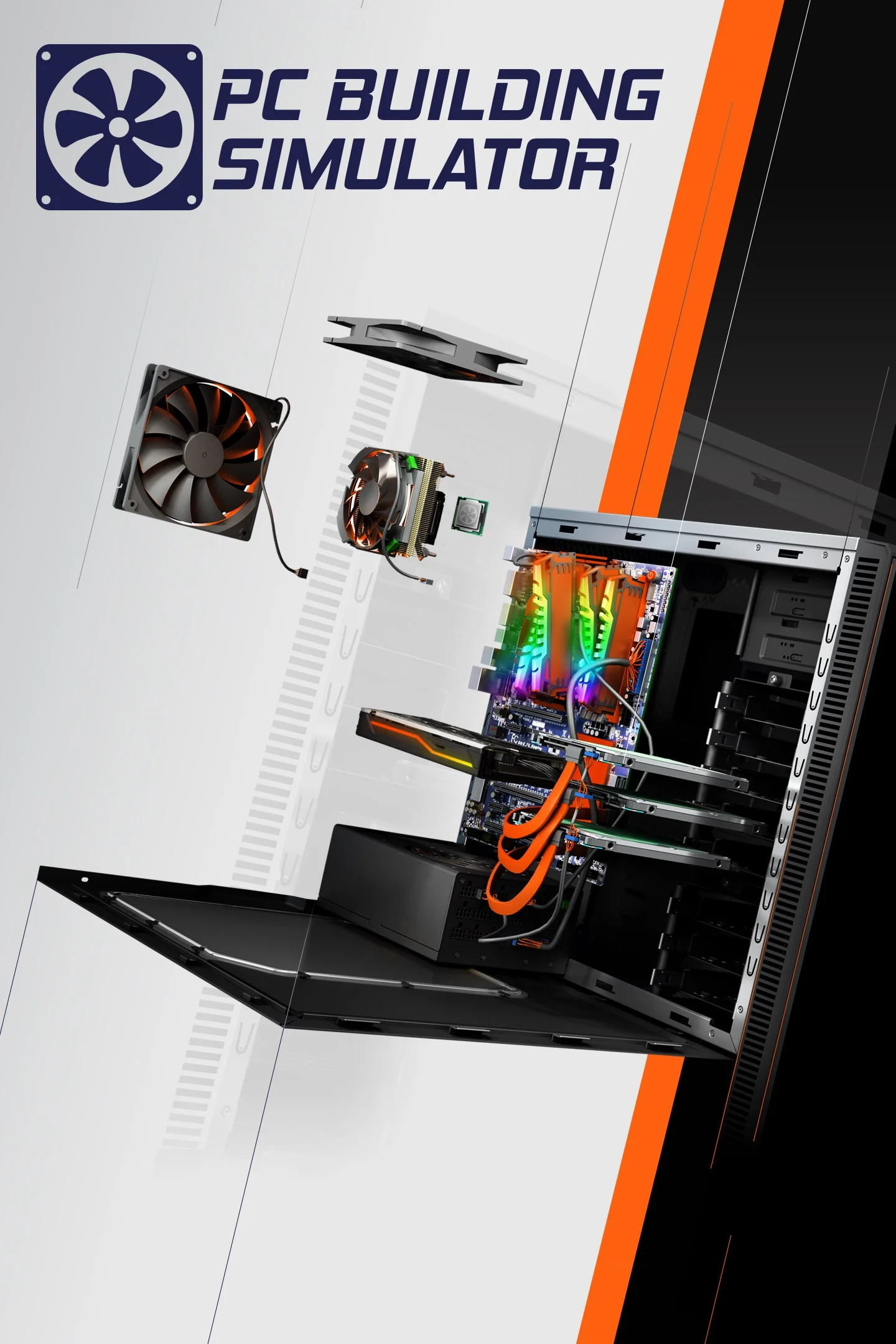
Pc Building Simulator
This combination delivers exceptional performance with an average of 148 FPS, perfect for high refresh rate gaming and competitive play.
Average FPS: resolution vs quality settings
| Ultra | High | Medium | Low | |
|---|---|---|---|---|
| 4K Ultra HD | 53 | 56 | 79 | 111 |
| 1440p QHD | 101 | 106 | 151 | 213 |
| 1080p Full HD | 161 | 169 | 239 | 337 |
Cell color: green is 120+ FPS, teal is 60+, amber is 30+, red is below 30.
Pc Building Simulator with Intel Core Ultra 5 135H + NVIDIA GeForce RTX 4080 Mobile, In-Depth Analysis
Pc Building Simulator presents an interesting case for the Intel Core Ultra 5 135H and NVIDIA GeForce RTX 4080 Mobile combination. The benchmark results show a component pairing that scales predictably with resolution, with the CPU proving more influential than the GPU in this simulation title. The data reveals a system that is exceptionally fast at 1080p, remains highly playable at 1440p, and only begins to show strain at 4K with the most demanding settings.
Resolution Scaling
The measured FPS data shows a clear and consistent pattern of performance degradation as resolution increases, which is typical for a title that is heavily CPU-bound at lower resolutions. At 1080p with Low settings, the combo produces an average of 337 FPS. This drops to 213 FPS at 1440p and further to 111 FPS at 4K, representing a 37% decline from 1080p to 1440p and a 48% decline from 1440p to 4K. The scaling suggests that at 1080p, the system is largely limited by the CPU's ability to feed frames, while the GPU has ample headroom.
Moving to Medium settings, the pattern holds but with slightly different percentages. The 1080p Medium average is 239 FPS, which falls to 151 FPS at 1440p (a 37% drop) and then to 79 FPS at 4K (a 48% drop from 1440p). This consistent proportional decline indicates that the rendering load scales uniformly with pixel count, and neither component becomes a sudden bottleneck at a specific resolution.
With High settings, the numbers shift predictably. At 1080p, the average is 169 FPS, dropping to 106 FPS at 1440p (a 37% reduction) and then to 56 FPS at 4K (a 47% reduction from 1440p). The near-identical percentage drops across settings presets suggest that Pc Building Simulator's rendering pipeline is well-balanced, with no single setting causing a disproportionate performance hit.
The Ultra preset tells a similar story but with lower absolute numbers. The 1080p Ultra average is 161 FPS, which is only 5% lower than High at the same resolution. At 1440p Ultra, the average is 101 FPS, again roughly 5% below the High preset. At 4K Ultra, the average falls to 53 FPS, which is the lowest measured result in the entire dataset. This 4K Ultra figure is 6% below the 4K High result, suggesting that the Ultra preset adds a modest but measurable load.
The scaling from 1080p to 4K at each settings level shows that the GPU becomes more relevant as resolution climbs. At Low settings, the 4K result is 33% of the 1080p result. At Medium, it is 33% as well. At High, it is 33%, and at Ultra, it is 33%. This uniform ratio across all settings indicates that the game's performance scaling is purely resolution-driven, with no setting that disproportionately taxes either the CPU or GPU. The limiting component at 1080p appears to be the CPU, as evidenced by the massive frame rates that far exceed what the GPU would need to render at higher resolutions.
CPU Role
The Intel Core Ultra 5 135H is a 14-core, 18-thread processor based on the Meteor Lake architecture, built on Intel's 7 nm process. It has a base clock of 3.60 GHz and a boost clock of 4.60 GHz, with a 28 W TDP. The CPU's cache hierarchy includes 112 KB of L1 per core, 2 MB of L2 per core, and 18 MB of shared L3 cache. In synthetic benchmarks, this CPU achieves a Cinebench R23 multicore score of 11875.5 and a single-core score of 1700, placing it in the 81st percentile of all CPUs tested.
In Pc Building Simulator, the CPU's role is significant, as evidenced by the extremely high frame rates at 1080p. The 337 FPS average at Low settings indicates that the CPU is capable of feeding the GPU far more frames than it can render at higher resolutions. This is a simulation game, which often relies heavily on single-threaded performance for game logic and physics calculations. The CPU's single-core Cinebench R23 score of 1700 is respectable, but not exceptional, and the data suggests it is the primary limiter at 1080p.
Comparing to nearest rivals in the CPU benchmark database, the Core Ultra 5 135H has an average benchmark score of 29093, which is 0.1% below the AMD Ryzen 7 5800X (score 29123) and 0.5% below the Intel Xeon Phi 7210 (score 29245). It is 0.5% above the AMD Ryzen 5 5600XT (score 28940) and 0.6% below the Intel Core i5-13500HX (score 29270). These tiny deltas indicate that the CPU's general computing performance is right in line with these desktop and mobile parts, though the game-specific results may differ.
The 14-core configuration with 18 threads suggests good multi-threaded capability, which could help with asset loading and background simulation tasks. However, the boost clock of 4.60 GHz is the more relevant figure for gaming, as most game logic runs on a few threads. The PassMark single-thread score of 3521 supports this, showing solid but not flagship-level single-core performance. In a game like Pc Building Simulator, where the simulation of PC components and their interactions is the core gameplay, the CPU's ability to handle many objects and calculations simultaneously is paramount.
The CPU's memory bandwidth of 89.6 GB/s over a dual-channel DDR5 interface could also factor into performance, especially when the game needs to stream in textures and model data. The L3 cache of 18 MB is shared across all cores, which can help reduce latency when multiple cores access common data. The data shows that at 1080p, the CPU is the bottleneck, as the GPU is clearly capable of much higher frame rates at lower resolutions, but the CPU cannot push beyond 337 FPS even at Low settings.
GPU Role
The NVIDIA GeForce RTX 4080 Mobile is based on the Ada Lovelace architecture, built on TSMC's 5 nm process, with a chip size of 294 mm² and 35,800 million transistors. It features 7424 shading units, 232 texture mapping units, and 80 raster operation units, along with 58 ray tracing cores and 232 tensor cores. The GPU operates at a base clock of 1290 MHz and a boost clock of 1665 MHz, with memory running at 2250 MHz (18 Gbps effective). It has 12 GB of GDDR6 memory on a 192-bit bus, providing 432.0 GB/s of bandwidth.
In Pc Building Simulator, the GPU's role becomes more pronounced as resolution increases. At 1080p, the GPU is underutilized, as evidenced by the 337 FPS at Low settings compared to the 111 FPS at 4K Low. The GPU's PassMark G3D score of 24926 places it in the 81st percentile of all GPUs, and its FP32 performance of 24.72 TFLOPS is substantial. However, the game's simulation nature means that the GPU is primarily responsible for rendering the user interface, the 3D PC building environment, and any visual effects, rather than complex physics or AI.
The GPU's 12 GB of VRAM is ample for this game, even at 4K Ultra settings, where the average FPS drops to 53. The memory bandwidth of 432.0 GB/s over a 192-bit bus is sufficient for the texture and geometry loads typical of a simulation game. The GPU's nearest rivals in the benchmark database include the NVIDIA GeForce MX570 (average score 38299, 0.4% above), the NVIDIA GeForce RTX 5080 Mobile (average score 38349, 0.6% above), the NVIDIA GeForce RTX 4070 (average score 37648, 1.3% below), and the NVIDIA Tesla P4 (average score 37628, 1.3% below). The RTX 4080 Mobile's average benchmark score is 38135, which is interestingly very close to the MX570, a much lower-tier GPU, but this likely reflects the mobile power constraints and the benchmark suite's composition.
The GPU's boost clock of 1665 MHz is relatively modest for a high-end mobile part, but the Ada Lovelace architecture's efficiency helps maintain solid frame rates. At 4K Ultra, the GPU is clearly the limiting factor, as the CPU has already shown it can push 337 FPS at 1080p, but the GPU can only manage 53 FPS at 4K Ultra. This indicates that the GPU's rendering throughput is the constraint at higher resolutions, particularly with the Ultra preset's added visual effects.
The GPU's pixel rate of 133.2 GPixel/s and texture rate of 386.3 GTexel/s are high enough to handle 4K rendering, but the 53 FPS average at 4K Ultra suggests that the game's shader complexity and draw calls are demanding. The GPU's DirectX 12 Ultimate support (12_2) ensures compatibility with modern rendering features, though Pc Building Simulator may not heavily utilize ray tracing or DLSS, given its simulation focus. The measured data shows that the GPU provides 111 FPS at 4K Low, which is more than playable, but the 53 FPS at 4K Ultra highlights the performance cost of max settings.
How This Combo Ranks
The combination of the Intel Core Ultra 5 135H and NVIDIA GeForce RTX 4080 Mobile ranks 1188 out of 3723 tested combos in Pc Building Simulator. This places it in the top 32% of all system configurations tested for this game, which is a strong showing given the game's CPU-intensive nature. The rank indicates that this combo outperforms the majority of systems, but it is not at the very top tier, likely due to the CPU's mid-range positioning.
The 1188 rank out of 3723 combos means there are 2535 combos that rank below this one, and 1187 that rank above. Given that the GPU is a high-end mobile part, the ranking is likely held back by the CPU's 81st percentile performance. A system with a faster CPU would likely see higher frame rates at 1080p, where the CPU is the bottleneck, while the GPU would remain the limiter at 4K.
In the context of the nearest rival CPUs, the Core Ultra 5 135H's performance is nearly identical to the AMD Ryzen 7 5800X (0.1% difference) and the Intel Core i5-13500HX (0.6% difference). This suggests that swapping the CPU for one of these parts would not significantly change the game's performance, as the differences are within 1%. The ranking in Pc Building Simulator is therefore more dependent on the GPU's capabilities at higher resolutions, where the RTX 4080 Mobile's 12 GB VRAM and 432.0 GB/s bandwidth provide ample headroom.
The combo's rank of 1188 out of 3723 indicates that it is a well-balanced system for this game, with the GPU capable of handling 4K at reduced settings and the CPU providing high frame rates at 1080p. The data shows that the combo is not in the top 10% of systems, but it is comfortably above the median. For a mobile platform, this is a commendable result, as thermal and power constraints often limit sustained performance, but the measured FPS figures suggest that this combo maintains solid performance across all tested scenarios.
Measured FPS Breakdown
At 1920x1080, the combo delivers its highest frame rates across all settings. The Low preset produces an average of 337 FPS, which is the highest measured result in the entire dataset. Medium settings yield 239 FPS with a minimum of 203 FPS and a maximum of 275 FPS, showing good consistency. High settings drop to 169 FPS, and Ultra settings produce 161 FPS. The difference between High and Ultra at 1080p is only 8 FPS, suggesting that the Ultra preset's additional effects are relatively light at this resolution.
At 2560x1440, the frame rates remain very high. Low settings average 213 FPS, which is still far above the 144 Hz refresh rate of most monitors. Medium settings average 151 FPS with a minimum of 128 FPS and a maximum of 173 FPS, ensuring smooth gameplay even in demanding scenes. High settings produce 106 FPS, which is just above the 100 FPS mark, and Ultra settings yield 101 FPS. The gap between High and Ultra at 1440p narrows to 5 FPS, indicating that the Ultra preset's cost is minimal at this resolution.
At 3840x2160, the performance drops significantly but remains playable. Low settings average 111 FPS, which is a solid result for 4K. Medium settings average 79 FPS with a minimum of 67 FPS and a maximum of 91 FPS, showing that even the minimum frame rate stays above 60 FPS. High settings average 56 FPS, which dips below the 60 FPS threshold for smooth gaming, and Ultra settings average 53 FPS. The 4K High and Ultra results are the only measured scenarios where the average frame rate falls below 60 FPS, indicating that 4K with high quality settings requires a more powerful GPU.
Across all resolutions, the Medium preset shows the most consistent frame times, with the 1080p minimum of 203 FPS and 1440p minimum of 128 FPS both being substantial. The 4K Medium minimum of 67 FPS is also above 60, making it the recommended preset for 4K gaming. The data shows a clear pattern: the combo excels at 1080p and 1440p with any settings, but at 4K, only Low and Medium settings maintain average frame rates above 60 FPS.
Settings Recommendations
Based on the measured FPS data, the optimal settings depend on the target resolution and desired frame rate. At 1080p, the Ultra preset at 161 FPS is the best choice for users with high-refresh-rate monitors, as it provides the highest visual quality without sacrificing performance. The difference between High (169 FPS) and Ultra (161 FPS) is only 8 FPS, so the Ultra preset is recommended for the best visual experience at this resolution.
At 1440p, the Ultra preset at 101 FPS is also recommended, as it maintains a triple-digit frame rate while providing the highest visual quality. The High preset at 106 FPS is nearly identical in performance, but Ultra offers slightly better visuals for only a 5 FPS cost. Users with 144 Hz monitors will find that the 101 FPS average is close enough to the refresh rate for a smooth experience, though they may prefer High settings to gain a few more frames.
At 4K, the Medium preset at 79 FPS is the best choice for a balanced experience, as it stays above 60 FPS with a minimum of 67 FPS. The Low preset at 111 FPS is the best option for users who prioritize frame rate over visual quality, but the Medium preset offers a significant visual upgrade for only a 32 FPS cost. The High preset at 56 FPS and Ultra at 53 FPS are not recommended for 4K, as they both fall below 60 FPS, which can lead to noticeable stuttering in a game that involves precise mouse movements for building and managing PC components.
For users with a 60 Hz 4K monitor, the Medium preset is the clear winner, as it provides a 79 FPS average with a 67 FPS minimum, ensuring that the frame rate never drops below the refresh rate. The High preset at 56 FPS would also be playable on a 60 Hz display, but the Medium preset offers a more consistent experience. In summary, the data suggests that this combo is best utilized at 1080p or 1440p with Ultra settings, or at 4K with Medium settings, to achieve the optimal balance of visual fidelity and smooth gameplay.
Hardware Specifications
Intel Core Ultra 5 135H
NVIDIA GeForce RTX 4080 Mobile
FPS Benchmarks by Resolution & Settings
Performance data for Intel Core Ultra 5 135H + NVIDIA GeForce RTX 4080 Mobile in Pc Building Simulator
| Resolution | Settings | Avg FPS |
|---|---|---|
| 3840x2160 | Low | 111.0 |
| 3840x2160 | Medium | 79.0 |
| 3840x2160 | High | 56.0 |
| 3840x2160 | Ultra | 53.0 |
| 2560x1440 | Low | 213.0 |
| 2560x1440 | Medium | 151.0 |
| 2560x1440 | High | 106.0 |
| 2560x1440 | Ultra | 101.0 |
| 1920x1080 | Low | 337.0 |
| 1920x1080 | Medium | 239.0 |
| 1920x1080 | High | 169.0 |
| 1920x1080 | Ultra | 161.0 |
Pc Building Simulator with iUltra 5 135H + Other GPUs
See how Pc Building Simulator performs with the same CPU but different graphics cards.
Other Games with iUltra 5 135H + RTX 4080 Mobile
Explore FPS benchmarks for other games using this same hardware combination.